
Pixel dimensions
A rule such as 200 × 230 px controls the digital width and height. It does not mean 200 KB. The downloaded JPG is created at the exact pixel dimensions entered in the tool.
Free online application tool
Crop, zoom and resize a photo or signature to the pixels and KB printed in your form. Processing happens privately on this device.
Choose the current form preset, then add an image.
Drag the image or use the precise controls.
Your file stays on this device. Preview and final JPG update here.
Keyboard: arrow keys move · +/− zoom · R rotates. Final file refreshes automatically after each edit.
Select a file to begin.
Step-by-step guide
The correct output is not simply a smaller picture. It must match the dimensions, format and file-size rule printed by the recruiting body. This workflow keeps those checks visible from upload to download.
Find the photo or signature instructions in the official notification or application portal. Note the accepted format, width and height in pixels, and minimum or maximum file size in KB. Choose a verified preset only when its exam and year match your form; otherwise choose Custom requirement.
Select a clear JPG, PNG or WebP file up to 15 MB. A passport-style photograph should have a sharp face, even lighting and a plain background. A signature should be written clearly on clean white paper with enough margin around the ink.
Drag the image inside the frame, use the 50–300% zoom control, or rotate it in 90-degree steps. Crop to fill fills the required frame without stretching; Fit with white background keeps the entire image visible and is often useful for signatures.
The result reports the achieved dimensions and actual file size. Download only when the requirement says Pass. Open the downloaded file once before uploading it to the recruitment portal and confirm that the face, signature and edges remain readable.
Before you resize
Most rejected uploads happen because only one requirement was checked. The tool validates dimensions and file size separately so you can see what the recruitment portal will evaluate.
A rule such as 200 × 230 px controls the digital width and height. It does not mean 200 KB. The downloaded JPG is created at the exact pixel dimensions entered in the tool.
A 20–50 KB rule controls the number of bytes accepted by the portal. Image detail, colour and JPEG quality affect KB, even when two files have the same pixels.
Changing a wide image into a tall frame can crop its sides. Reposition and zoom the live preview rather than stretching the face or signature out of proportion.
SSC, IBPS, UPSC, RRB and other bodies may change their instructions by exam or year. The current official notice always takes priority over a remembered size or an old tutorial.
Practical examples
These examples explain how the current verified presets behave. They are not universal rules for every application. Always match the preset to the official form you are completing.
| Application task | Working requirement | What to verify |
|---|---|---|
| IBPS photograph | 200 × 230 px, 20–50 KB | Use a recent photograph and follow the current live-photo instructions in addition to the upload rule. |
| IBPS signature | 140 × 60 px, 10–20 KB | Use a clear signature on white paper; signatures in capital letters are not accepted in the cited notice. |
| SSC signature | JPG/JPEG, 10–20 KB | The 350 × 120 px canvas is editable guidance; the cited SSC rule describes about 6 cm × 2 cm, not an official pixel mandate. |
| UPSC or RRB form | Enter the current notice values | Requirements vary by examination or CEN, so Custom mode is safer than reusing an old size. |
Need a specific output such as a 50 KB photo or a 10–20 KB signature? Enter that exact range in Custom mode instead of choosing a similar preset.
Official source check
Verified presets link to the recruiting body's own notice. Guidance presets remain editable because no single size can safely represent every current UPSC or RRB application.
SSC specifies JPG/JPEG, 10–20 KB and about 6 cm × 2 cm. Pixel values here are an editable working canvas, not an official pixel mandate. Current SSC notices capture the photograph live.
SSC JSA/LDCE 2026 official noticePreferred dimensions 200 × 230 pixels, 20–50 KB, in addition to the current live-photograph capture step.
IBPS CRP PO/MT-XVI detailed notificationPreferred dimensions 140 × 60 pixels and 10–20 KB. Signatures in capital letters are not accepted.
IBPS CRP PO/MT-XVI detailed notificationNo universal UPSC size is assumed. Copy the exact limits from the current examination portal before processing.
UPSC Online official portalRRB requirements vary by CEN. Copy the limits from the relevant current notification; these fields remain editable.
Prepare the source image
The examples below are fictional and illustrative, not official templates. Use them to understand framing, then follow the current recruitment notice.
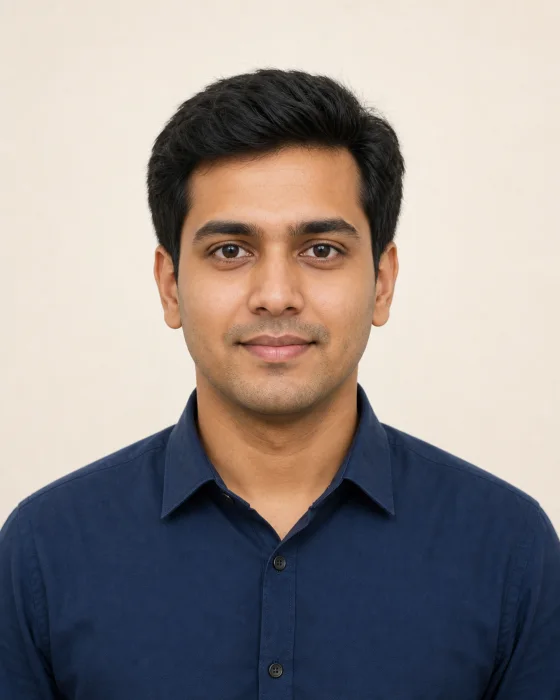
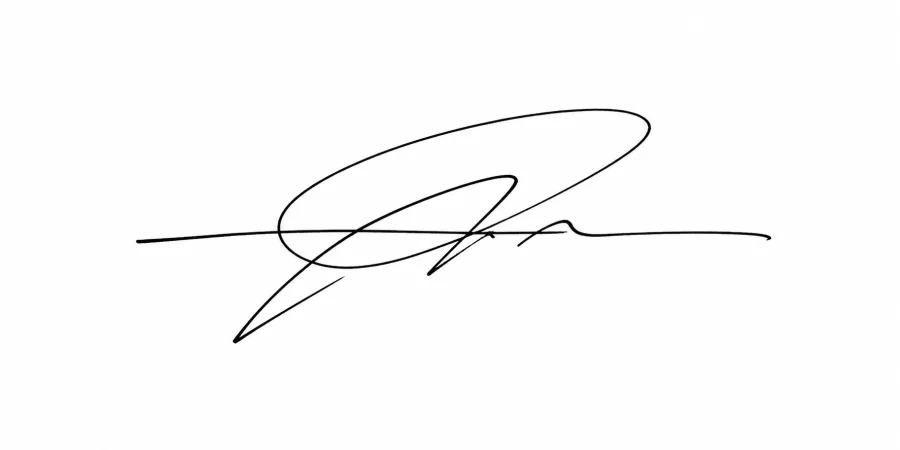
Troubleshooting
If a recruitment portal rejects the file, compare its exact message with the final result shown by this tool.
Confirm that Maximum KB matches the portal rule, then refresh the final file. Do not change the pixel dimensions unless the notification also permits a different resolution.
Enter the printed minimum KB. Very simple black-and-white signatures compress strongly; the result must still remain a valid, readable JPG inside the chosen range.
Zoom out, drag the image toward the missing area, or switch from Crop to fill to Fit with white background. Check all four edges before downloading.
Do not reshape the source in another editor. This tool preserves the original proportions; use crop and position controls to fit a differently shaped frame.
The downloaded result is a JPG even when the source was PNG or WebP. The new file is re-encoded, which also removes the source image's embedded metadata.
Choose Custom requirement and copy the current width, height and KB range. Report an outdated preset through the corrections link below so it can be reviewed.
Private by design
The browser reads the selected image, draws the edited result on a local canvas and creates the download with a temporary browser URL. File bytes, previews and filenames are not sent to GetJobAlert, stored in your account, written to local storage or included in analytics. Leaving or resetting the page releases the temporary result.
This makes the tool suitable for sensitive application images, but you should still use a trusted personal device and avoid leaving downloaded identity files on a shared computer.
Questions answered
Yes. Choose Custom requirement, enter the required pixel dimensions, set the minimum and maximum KB, and use the pass/fail result. A portal that says “up to 50 KB” normally needs only a maximum; use the exact wording in its instructions.
Yes. Select an image from the phone, use the visible zoom and position sliders or drag the preview, and download the JPG. The controls remain available without a mouse.
No tool can guarantee acceptance because portals also check current rules, image content and sometimes live capture. This tool verifies the selected pixels and KB; the official notification remains authoritative.
The cited current SSC notice uses live photograph capture and separately specifies a 10–20 KB JPG/JPEG signature. Do not upload an old resized photo when the active application asks the device camera to capture a live image.
UPSC requirements can differ by examination and RRB requirements can differ by CEN. A universal preset would be misleading, so those options deliberately keep the dimensions and KB fields editable.
Some compression is expected, especially at a strict maximum KB. Start with a clear source, inspect the live crop and open the downloaded file at normal size. Readability matters more than forcing an unnecessarily tiny file.